

Find a conversation
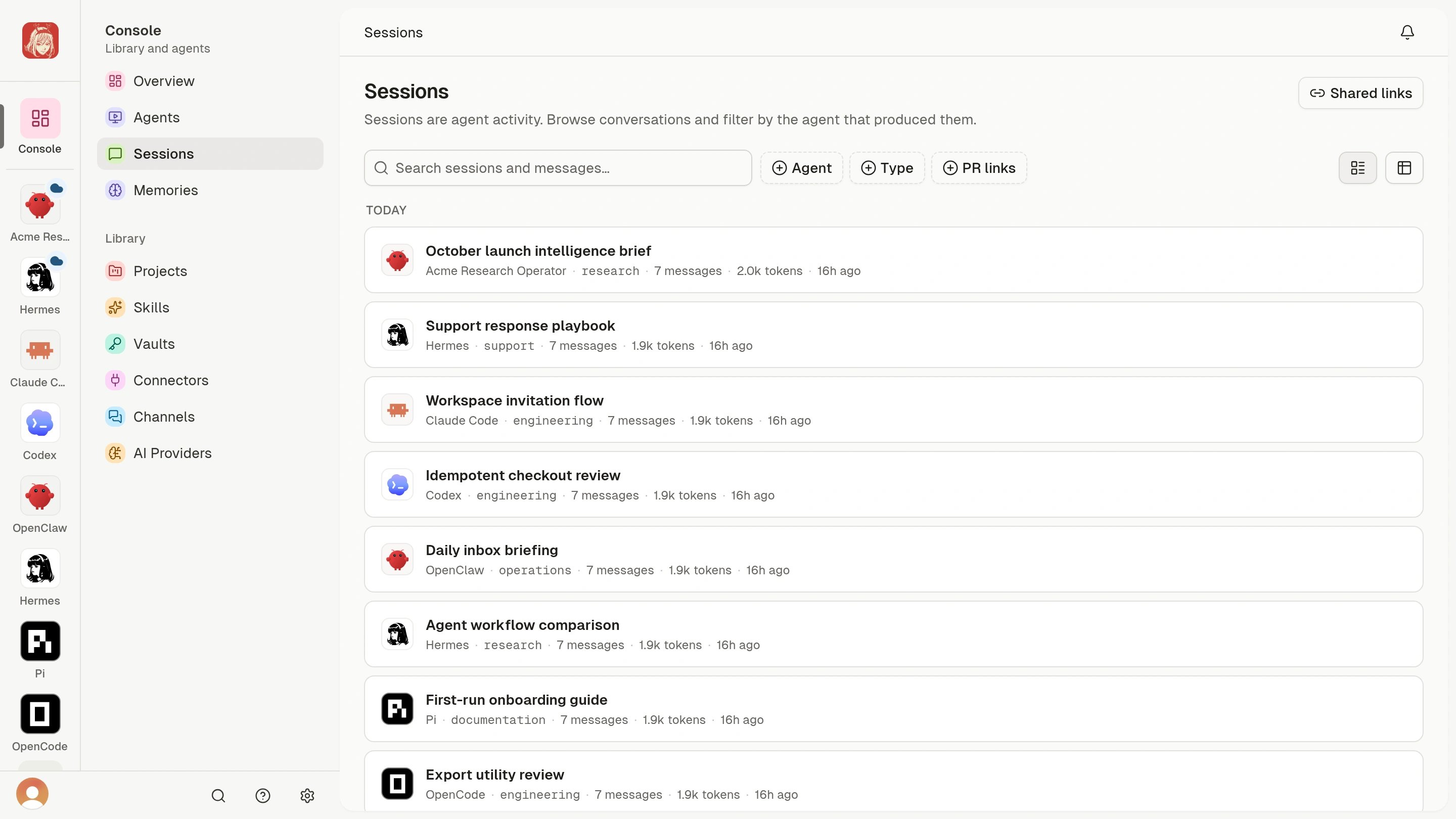
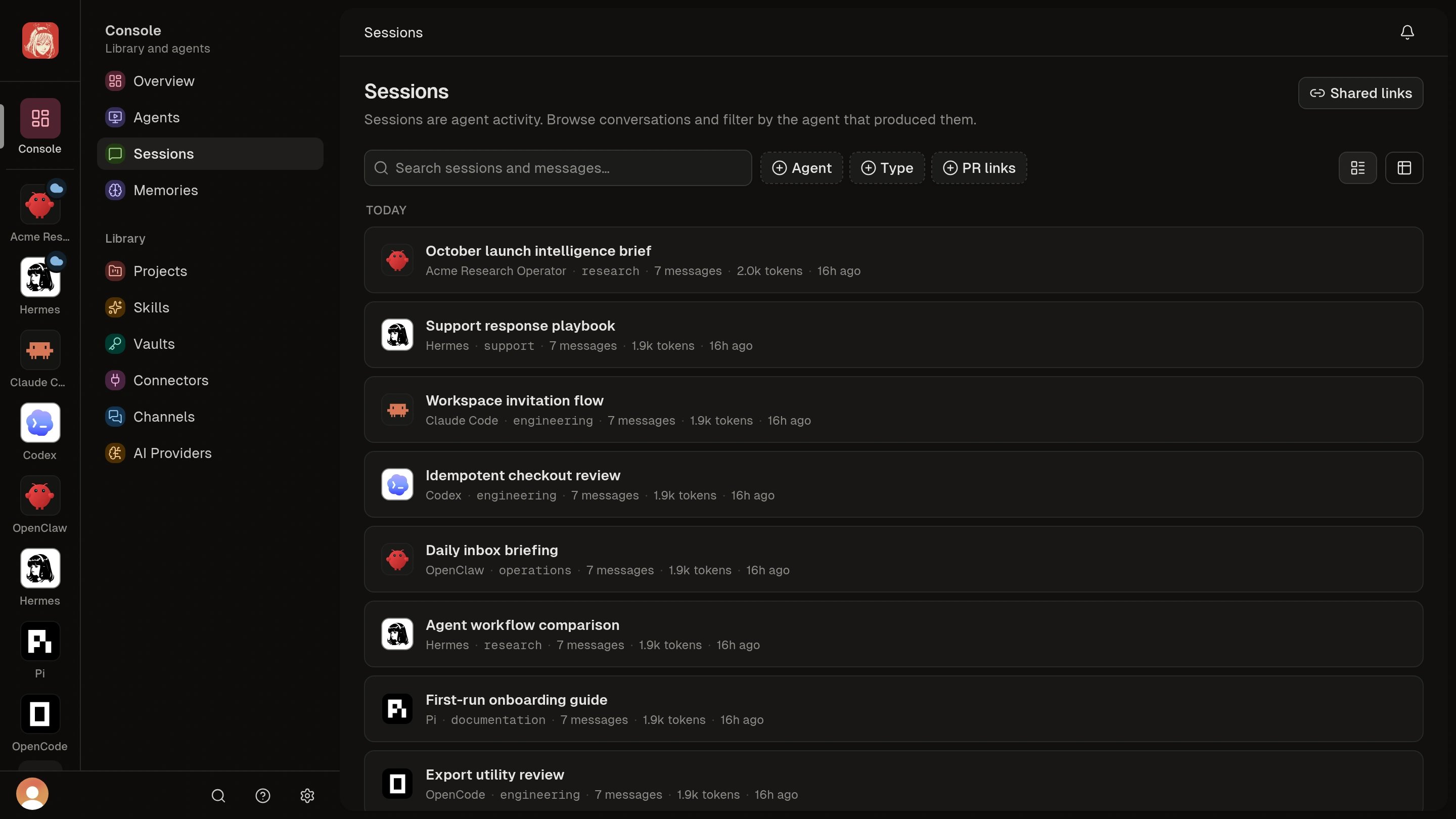
- Open Console > Sessions.
- Search for words from the conversation and narrow the results by Agent or activity.
- Open a result to read the matching messages.
- Within a Session, use search and the next/previous controls to find another match.
Share the useful part
Open a Session and choose the smallest amount of content your recipient needs:- Share at the top: the current conversation.
- Share conversation to here on a message: the conversation up to that point.
- Share response on an Agent response: just that response.
Turn off access
Open Sessions > Shared Session links, or the Session’s Share dialog, to review and turn off active links. Older Live links can include later uploads, so review those too. Files someone already downloaded remain independent copies.Missing a conversation?
For a Connected Agent, check that its computer is online and background sync is running. For a Cloud Agent, check the Agent’s status in Clawdi. The advanced steps below cover sync checks and exporting a private copy.Advanced: Session commands, sync, sharing, and exports
Advanced: Session commands, sync, sharing, and exports
Sync a Connected Agent Session
Connected Agent setup installs the background daemon by default. Check it before doing a manual backfill:codex with claude_code, hermes, openclaw, pi, or opencode
when appropriate.
Omitting --project uses the current directory for a normal push; use
clawdi push --help before widening a backfill with --all.The command reports new, updated, or unchanged Sessions. They appear under
Sessions in the dashboard and on the relevant Agent page.
push for a remote runtime; use the status
shown on the Cloud Agent page. See Cloud Agents.Review and find a Session
Open Sessions in the dashboard. Search visible user and assistant messages, summaries, folders, or Session IDs, then narrow results with Agent and activity filters. Results show matching context; opening a message match takes you to that message.Within a Session, use transcript search and its next/previous controls to move between highlighted matches. Read messages and Agent activity in chronological order or jump to the latest messages. Private reasoning and tool payloads are excluded from search.To find and read uploaded Sessions from the CLI:search. session list lists local
Sessions; search and read use the uploaded Cloud copy.If a row exists but its messages do not, rerun the focused push. Metadata can
arrive before a content upload succeeds, and the next push retries content that
is not in sync.Mirror synced Sessions onto another computer
For a Connected Agent installation on the destination computer:clawdi config paths to inspect the local paths for your installed CLI
version instead of relying on a hard-coded directory.Share one Session
Choose the smallest amount of conversation the recipient needs:Create the link, copy it, and open it in a signed-out window to verify the
intended content. Each new link is a snapshot: later messages are not added.
Sharing includes visible conversation content, excluding private reasoning,
system messages, and tool payloads.
Share from the CLI
Read the uploaded Session before publishing a link:--yes. To limit the snapshot, use a message’s position
from the read output:--response must select an Agent response.
Use either --through or --response, or omit both for the current whole
conversation. Review the returned link before sending it to anyone.Sharing requires account-level authorization. An Agent-bound or restricted key
cannot create public links on the account’s behalf.Review and turn off shared links
Open Sessions > Shared Session links to review, copy, open, or turn off active links across Sessions. You can also manage a Session’s links in its Share dialog.Older Live links can include later uploads. New Snapshot links retain only their chosen content. Turn off an older live link if you no longer want future uploads to be accessible through it; creating a snapshot does not turn off other links.From the CLI:kind from the listing. For an older live link, add --legacy
and use that link’s listed ID, not the original Session ID. Listing is paged;
advance --page to review the remaining active links.Export as Markdown or JSON
To export your uploaded Session without making it public:.md or .json to the exact
share URL:Turning off a link cannot recall a file someone already downloaded or copied.
Treat exports as independent copies.
clawdi session --help, clawdi push --help, and clawdi pull --help
for the filters available in your CLI version. See the Clawdi
CLI for dry-run and JSON conventions.