

Connect an app
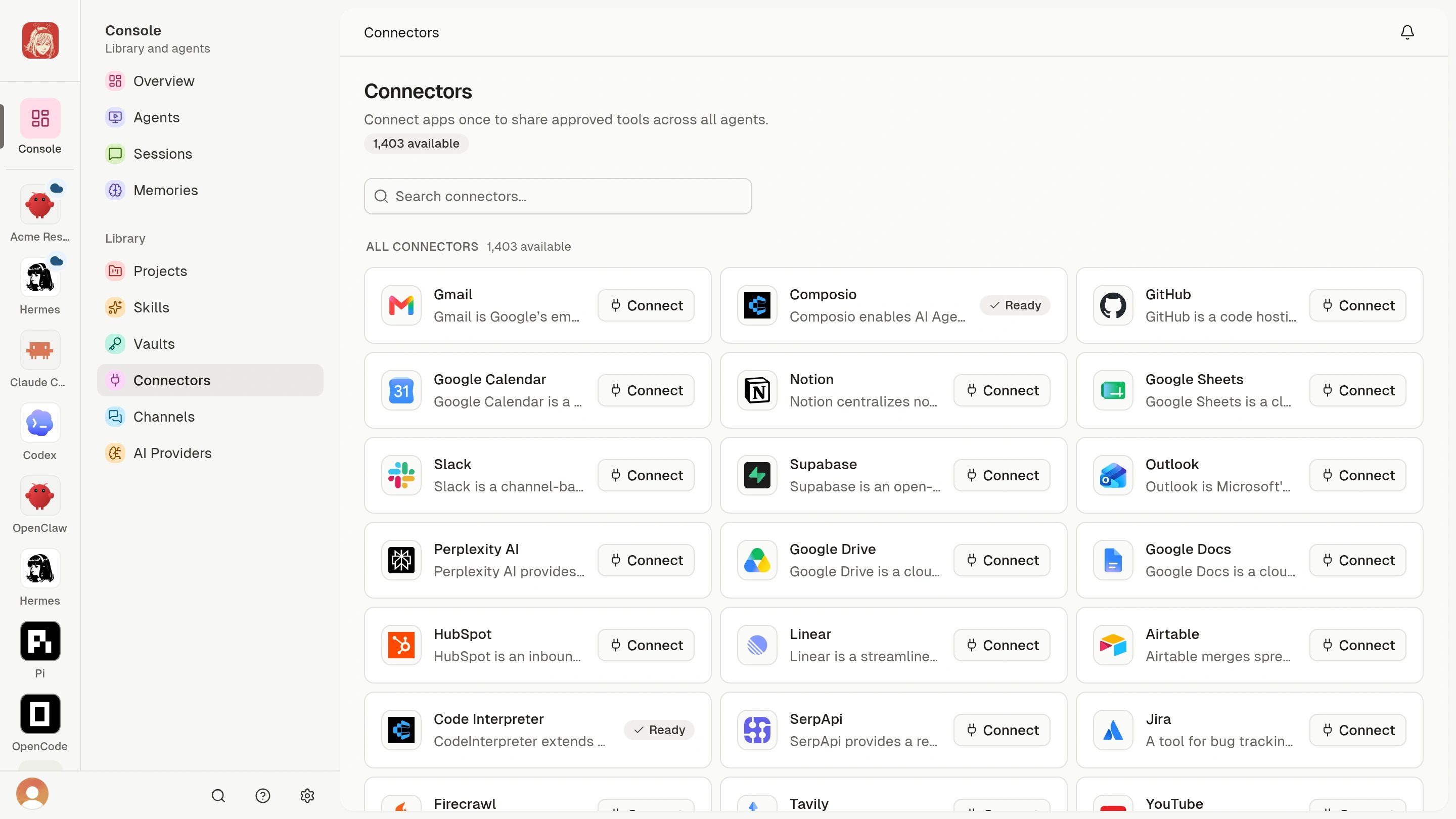
Start in Library > Connectors in the Clawdi dashboard:- Open Library > Connectors and search the current catalog.
- Select an app and review Available tools before granting access.
- If the detail page already shows Ready, no account is required. Skip to testing its tools.
- Otherwise, choose Connect Account and complete the provider’s consent flow or enter the credential fields shown.
- Return to the Connector page and confirm that it shows Connected.
The detail page shows Connected or Ready and lists the tools the
Connector can expose.
Try a small task
Open your Agent and ask it to list its available tools for the app. Start with a harmless read, such as finding a test document, and review the result. A Ready toolkit may work without a connected account; account-based apps need their own authorization.Advanced: verify the tool connection for your Agent
Advanced: verify the tool connection for your Agent
Verify MCP for a Connected Agent
clawdi setup registers the supported MCP entry for detected Agent software.
Refresh one installation and verify the service endpoint:codex with claude_code, hermes, or openclaw. Setup prints manual
guidance if it cannot update that software’s MCP configuration. A successful
Clawdi MCP line in doctor means the endpoint is reachable; confirm the
clawdi server in the Agent software’s own MCP list as the final local check.Start a new Agent conversation and ask it to list its available Clawdi tools.
The current tool list reflects native tools, active Connector accounts, and
the caller’s access. A Connector can be visible in the dashboard without being
usable until its detail page reports Connected or Ready.clawdi mcp is the stdio server command registered for Agent software. A
normal user does not need to keep it running in a separate terminal; the
Agent starts it when needed.Check availability for a Cloud Agent
Do not run local Connected Agent setup for a Cloud Agent. Open the Agent in the dashboard and use the Connector or integration controls shown for that remote runtime. If a capability or tool is absent, treat that UI and the Agent’s live tool list as authoritative rather than assuming the local catalog applies.See Cloud Agents for the run-path distinction and Cloud Agent settings and lifecycle for its runtime controls.Disconnect an app
Open the Connector detail page, find the connected account, and choose Disconnect. Confirm only after checking which Agent workflows use its tools. If tools are missing or stale, follow MCP troubleshooting. For current verification options, useclawdi setup --help and clawdi doctor --help.