

Current provider availability
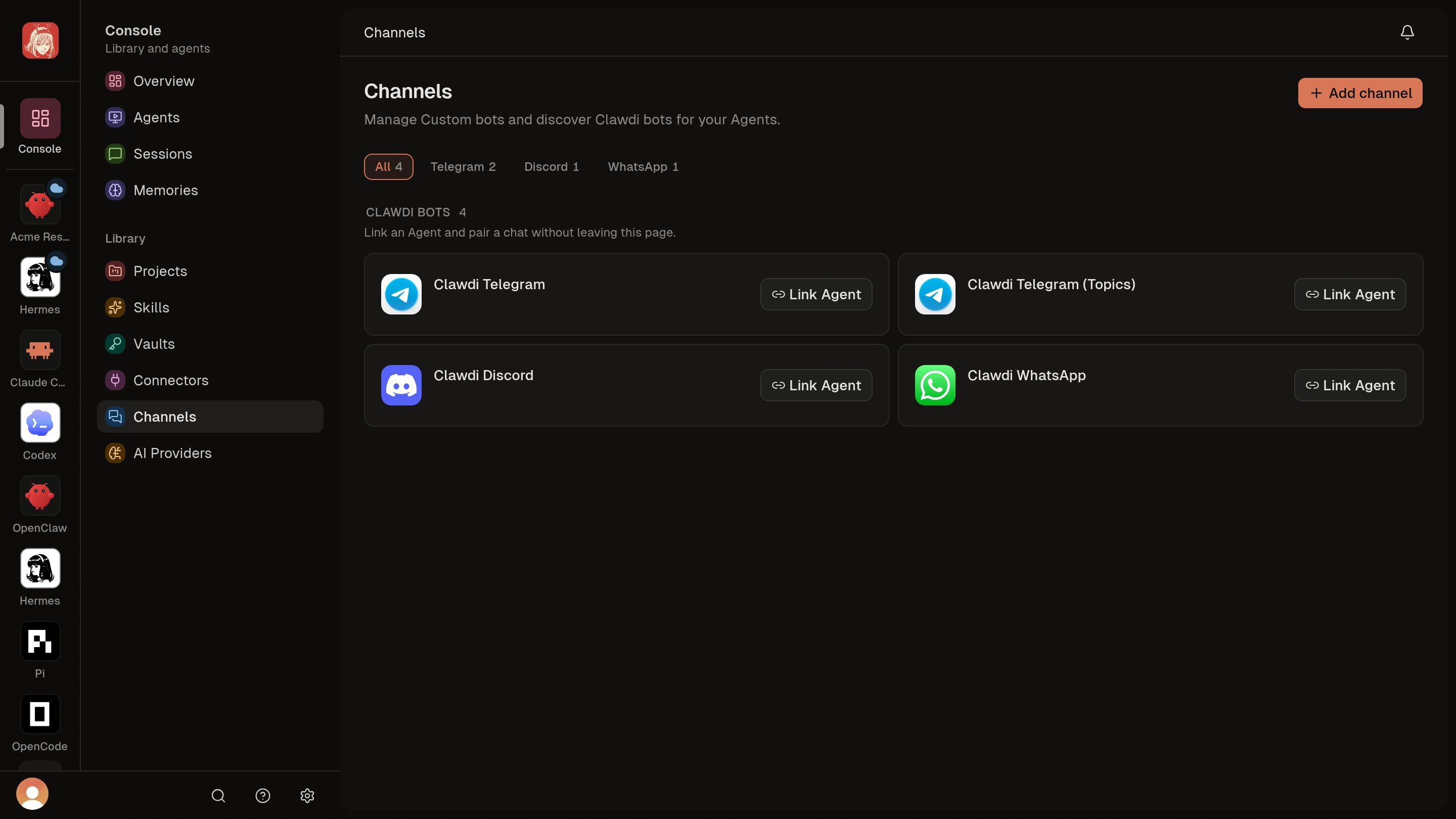
The released dashboard supports Telegram and Discord bots and custom WhatsApp accounts. Use Library > Channels to see the providers and status currently shown for your account.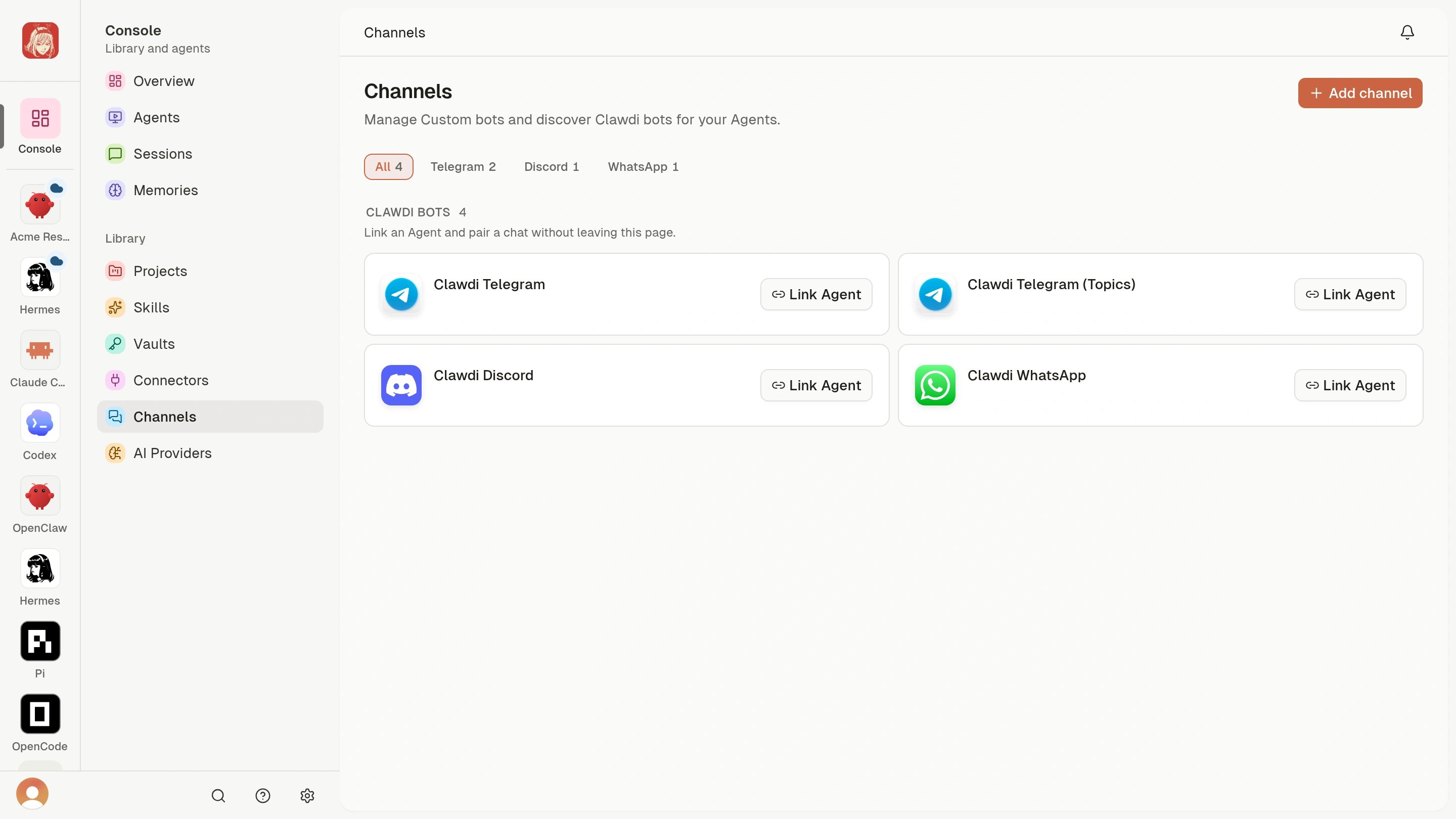
Choose a Clawdi bot
Open Library > Channels and review Clawdi bots. Choose Link Agent on the bot you want, select your Cloud Agent, then continue to pairing. A Clawdi bot lets you start without creating your own bot.Connect a bot
Open Library > Channels in the Clawdi dashboard, choose Add channel, and select a provider:- For Telegram, enter a name and the bot token obtained from BotFather.
- For Discord, enter a name, bot token, application ID, and interactions public key from the Discord Developer Portal.
- For WhatsApp, choose Connect your account and follow the linked-device setup. The dashboard adds the account under custom bots after the device connection completes.
Link the Channel to an Agent
Open the Agent’s Channels, choose an available bot, and select Link. Check that the row now offers Pair and Unlink. A linked bot with zero paired chats is ready for the next step: authorizing your chosen chat.Pair WhatsApp
Connecting a WhatsApp linked device does not link it to an Agent or pair a chat. Complete those separately:- Open the custom WhatsApp Channel and use Link Agent for the intended Cloud Agent.
- From the linked Channel, choose Pair chat and follow the current QR, link, or pairing instructions.
- Send a harmless test message and confirm the paired chat and Channel health.
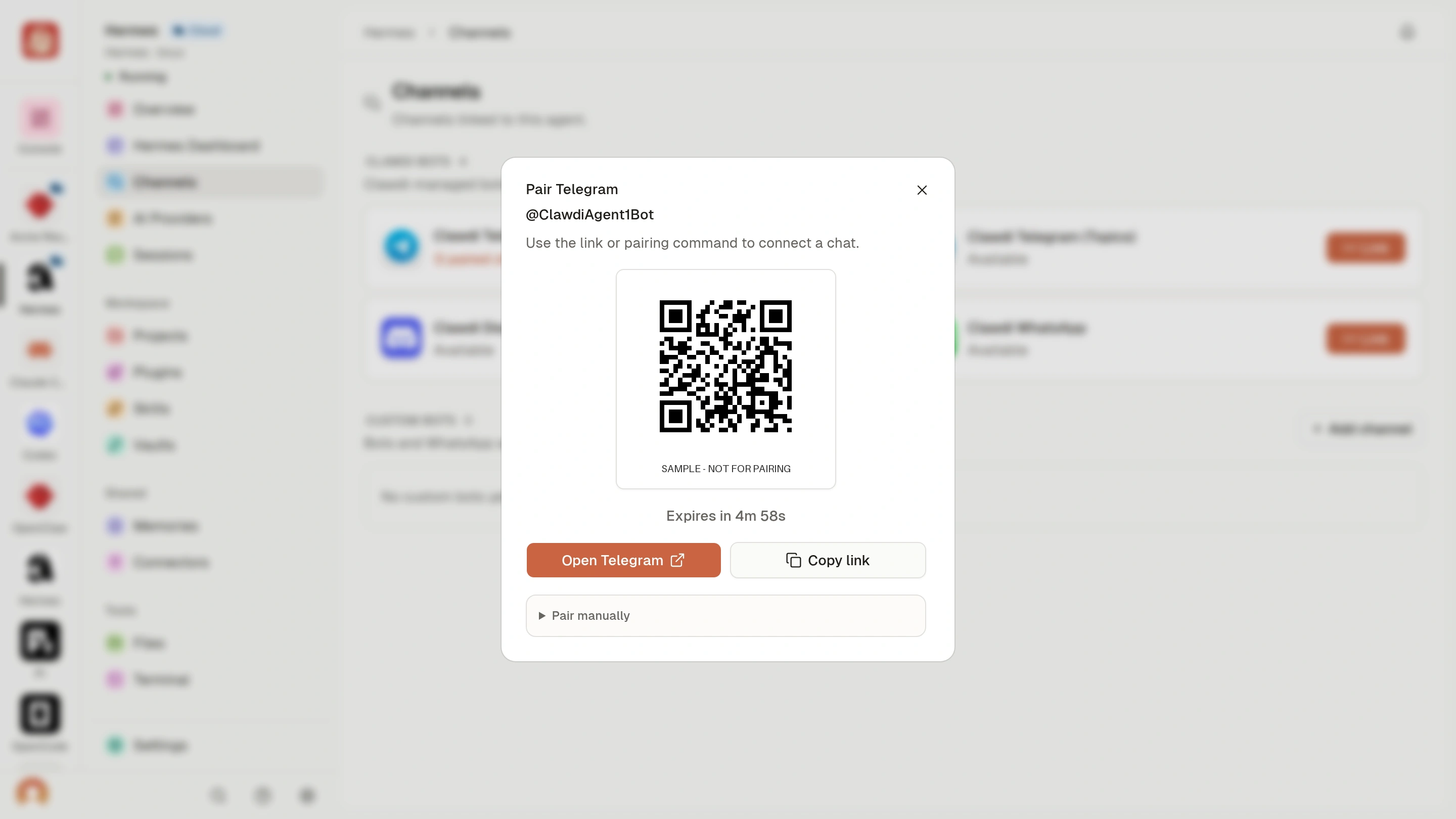
Pair Telegram
On the Agent’s connected Channel row, choose Pair. Use one of the paths shown:- Scan the QR code or open the generated Telegram link for a direct chat.
- For a group, add the bot and send the exact pairing command displayed by the dashboard.
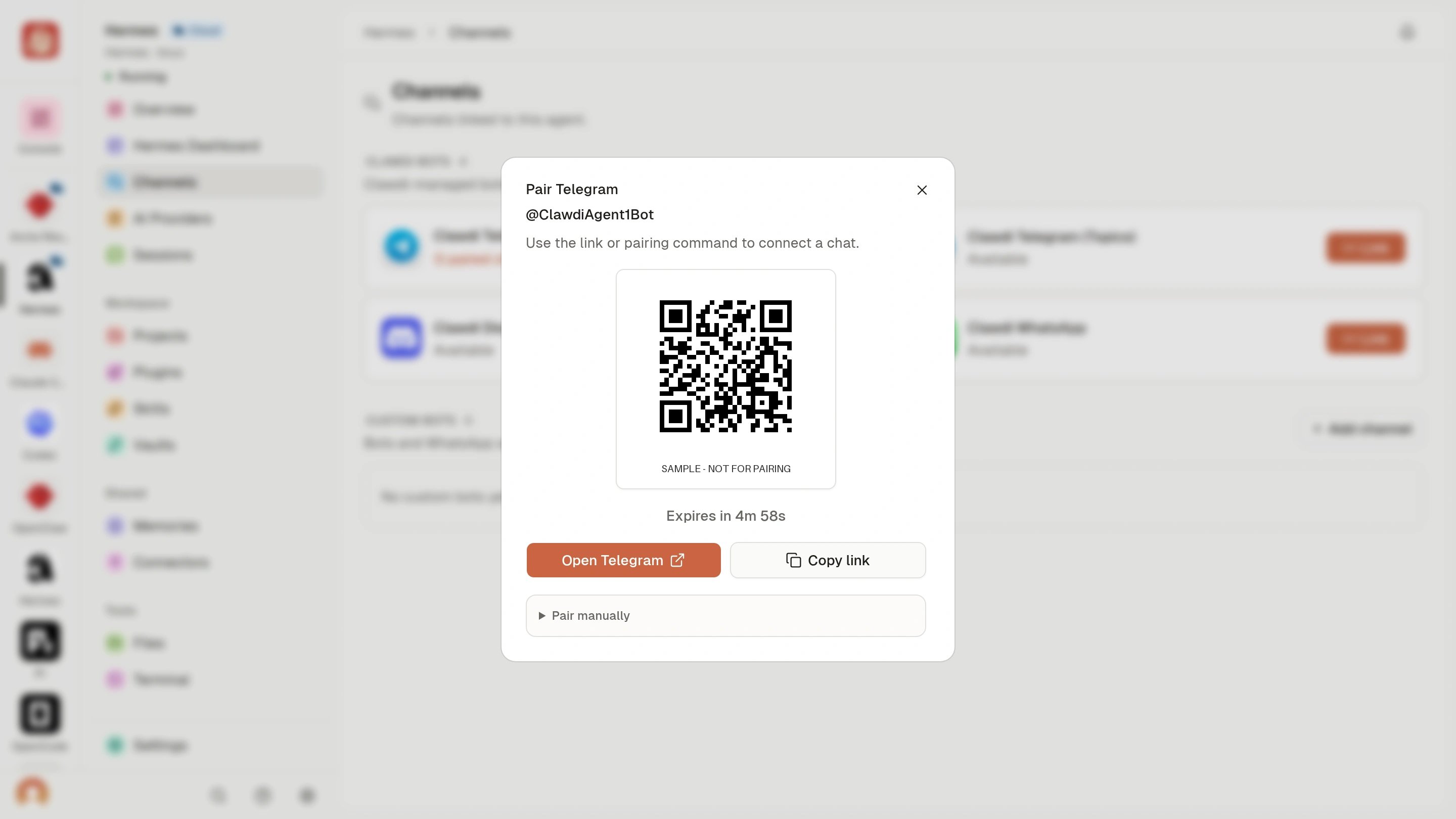
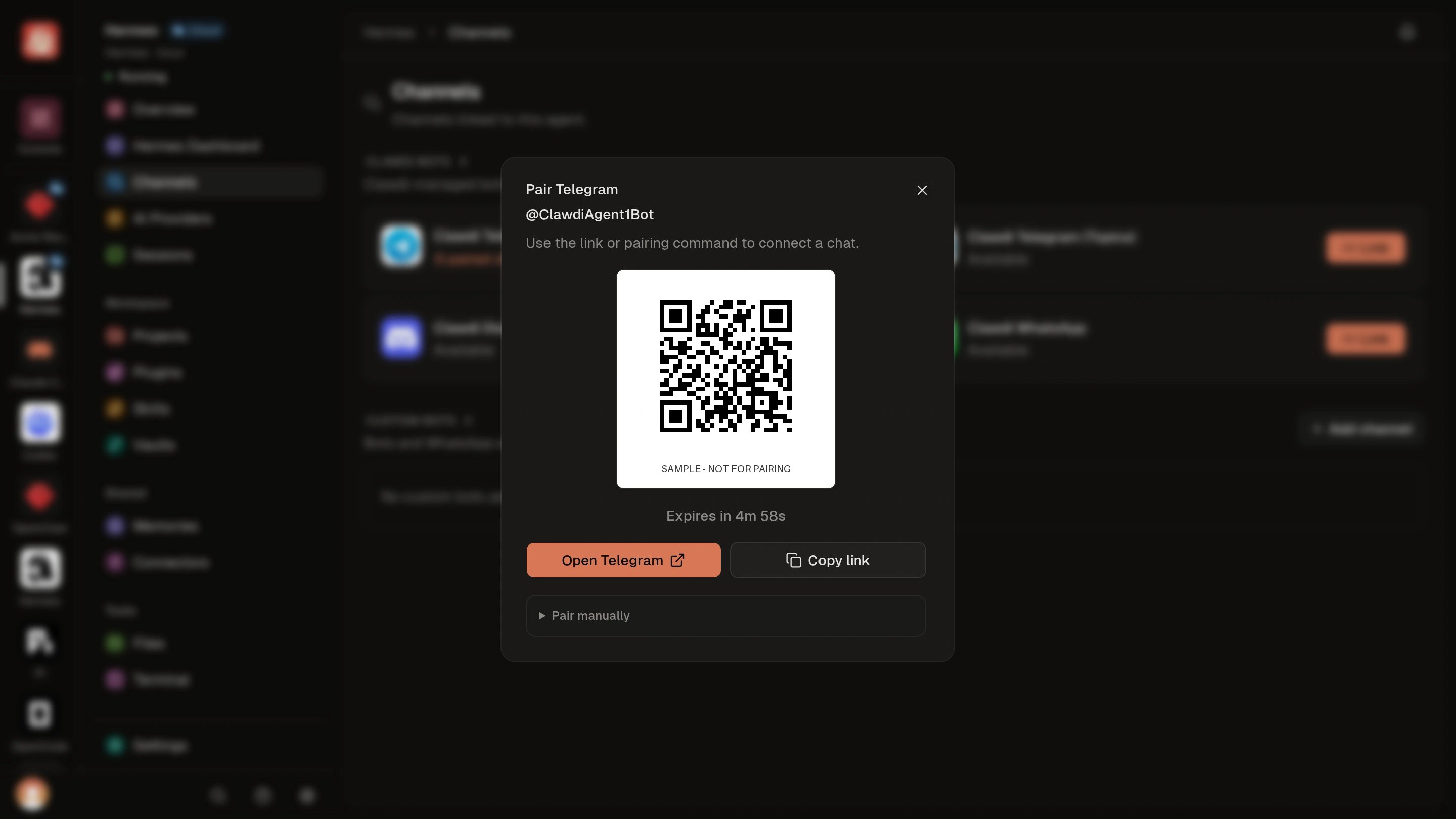
https://example.com/clawdi-demo. Generate a fresh pairing link in Clawdi for your own chat. Light full-size image · Dark full-size image
Pair Discord
On the Discord connection, choose Pair, then select Server or Direct message:- For a server, add the bot with the generated install link. You need the provider permission stated by the dashboard.
- In the target server or direct message, run
/clawdi_pairand provide the generated code in its requiredcodeoption.
Unpair one chat
Use this when the bot and Agent should stay linked but one external chat should stop reaching it:- For Telegram, choose the unpair action beside the paired chat and confirm.
- For Discord, run
/clawdi_unpairinside the paired server or direct message.
Unlink an Agent
On the Agent’s Channels section, choose the unlink action beside the bot and confirm. The Agent stops answering through that bot. The Channel remains available and can still be linked to other Agents.Remove the Channel
Open the Channel detail page and choose Remove only when the bot connection itself should be retired.Advanced: inspect Channels from the command line
Advanced: inspect Channels from the command line
For CLI inspection and automation, start with:Avoid copying a full option table into scripts; provider fields and pairing
outputs can vary by CLI version and account availability.