

Before you begin
- Sign in to the Clawdi dashboard.
- Have a Running Cloud Agent whose Agent Interface can complete a basic interaction and whose live Clawdi tools include Memory access.
- Choose non-secret context that will remain useful beyond one conversation.
Steps
1
Add one useful Memory
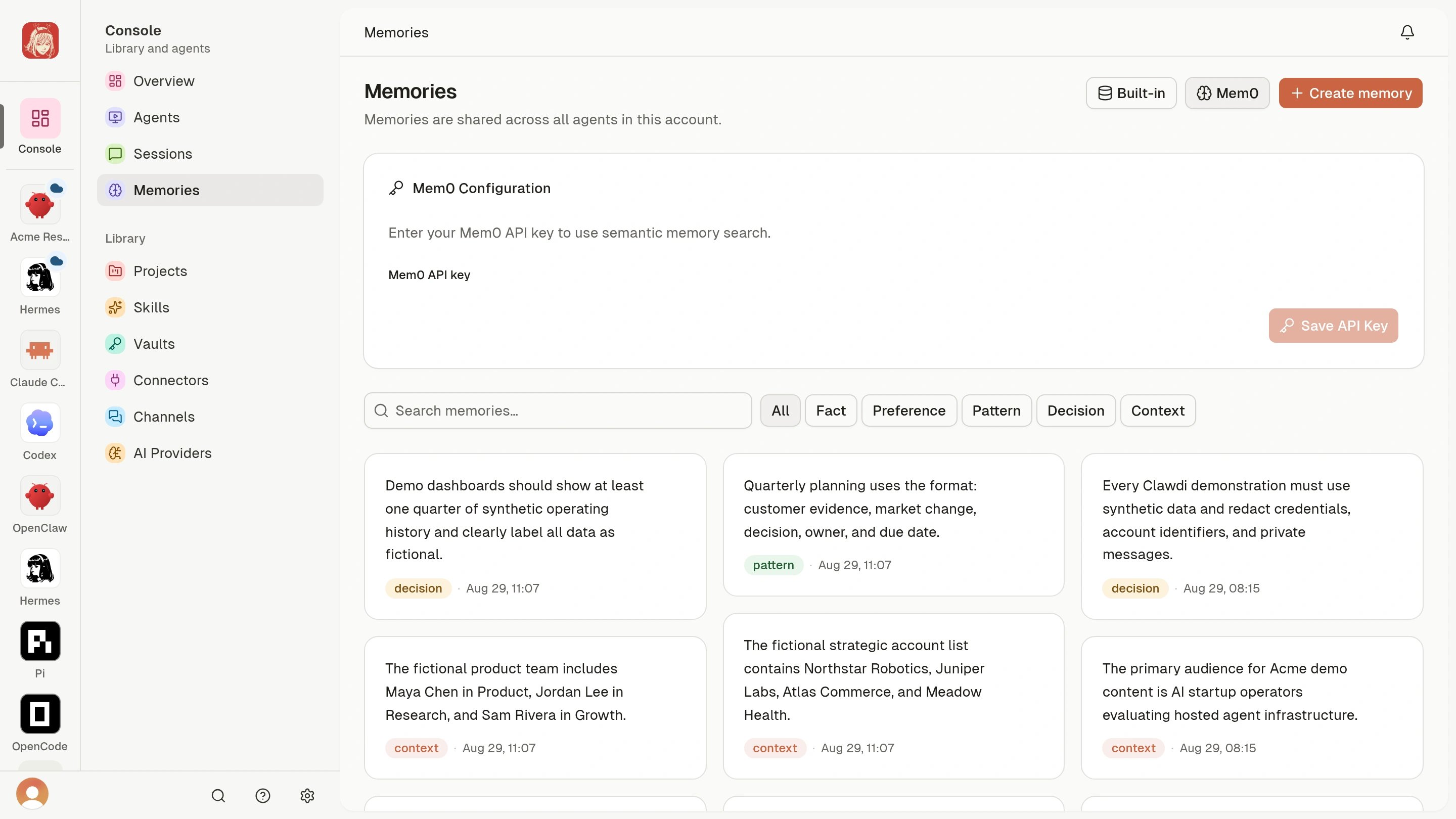
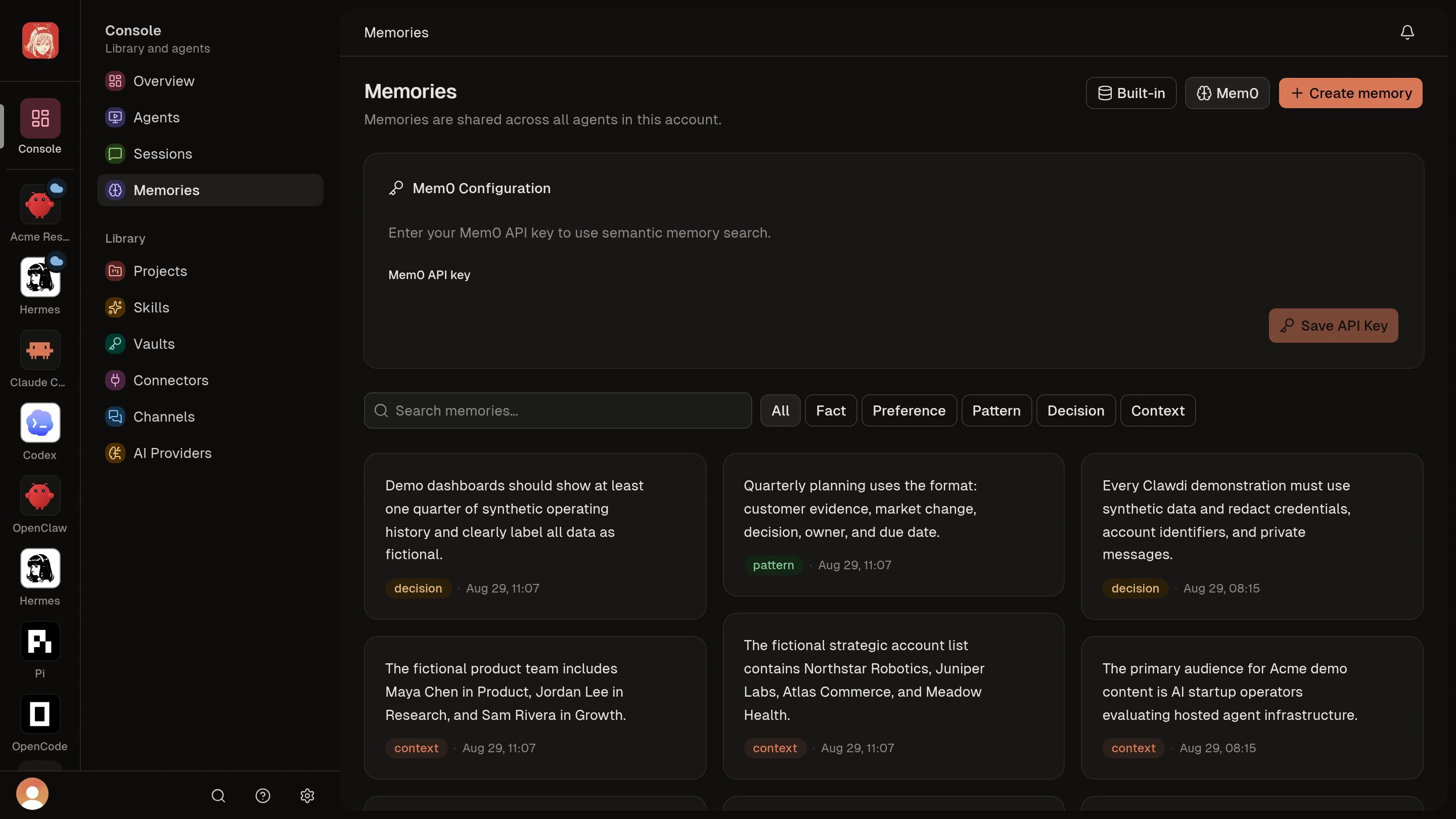
Open Memories, choose Create memory, and write one self-contained
preference. For example: “For project updates, use a short summary followed
by the next actions.” Select the closest category and save it.
2
Find it again
Search Memories for a distinctive phrase from the preference. Confirm that
the new Memory appears before testing it with an Agent.
3
Use it in a new interaction
Open the Cloud Agent’s Hermes Dashboard or OpenClaw Control UI and
start a new interaction. Ask
it to use your Clawdi context, for example: “Using my saved preferences,
draft a project update for a launch that is on track.”
4
Review the result
Confirm that the response follows the saved preference. If the Agent does
not use it, inspect the Agent’s live Clawdi tools and follow the Memory
troubleshooting links in the canonical guide.
The Memory is searchable in the dashboard, and a new Agent interaction can
use the preference without you repeating it in the prompt.