

Before you begin
- Sign in to the Clawdi dashboard.
- Have an Agent with a working Clawdi tool integration.
- Have permission to authorize the app account you intend to connect.
Steps
1
Choose an app
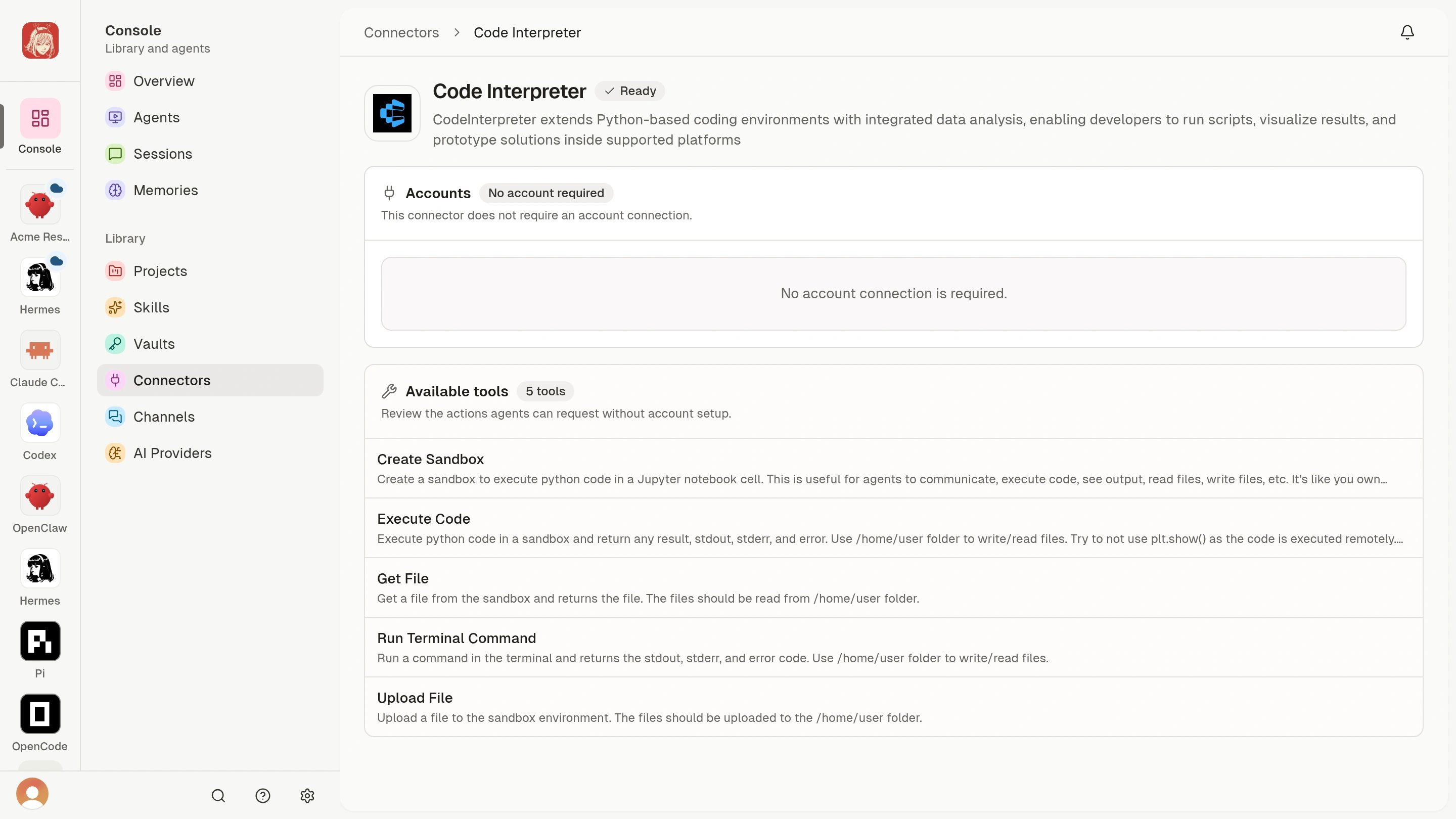
Open Library > Connectors, select an app from the current catalog, and
review its Available tools. The catalog is the source of truth for
current app and authentication availability.
2
Authorize the connection
If the Connector already shows Ready, continue to the next step.
Otherwise, choose Connect Account and complete the consent or credential
fields shown by the provider and dashboard.
3
Check the Connector status
Return to the Connector detail page. Confirm that it shows Connected or
Ready and still lists the tools you expect to use.
4
Verify tools from the Agent
Start a new Agent interaction and ask it to list the tools currently
available for that app. Begin with a read-only request, and review the
proposed action before allowing a tool to change external data.
The Connector shows Connected or Ready, and the Agent’s live tool
list includes the app capability you intend to use.