

Agent Interface
The Agent interface embeds Hermes Dashboard or OpenClaw Control UI. Its layout, capabilities, and authentication can differ by software. The Agent overview also links to its messaging Channels and AI Provider settings.- Confirm the Cloud Agent is Running and open Hermes Dashboard or OpenClaw Control UI.
- Wait for the embedded interface to load; open Access only when sign-in material is needed.
- Start a new conversation and send a small, non-secret task.
- Review the response before trusting a larger workflow.
The embedded interface accepts your task and shows a response from the
intended Cloud Agent.
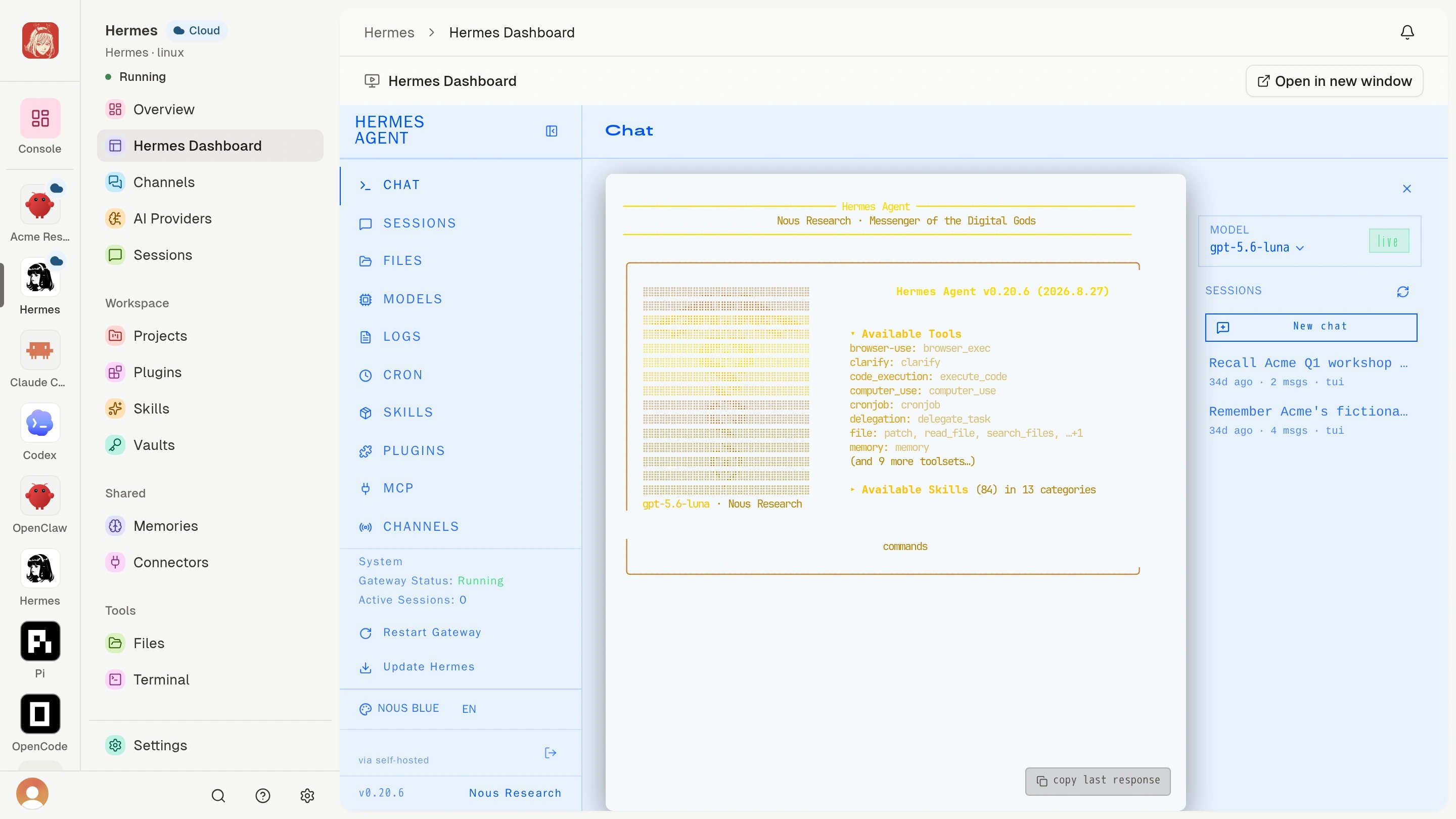
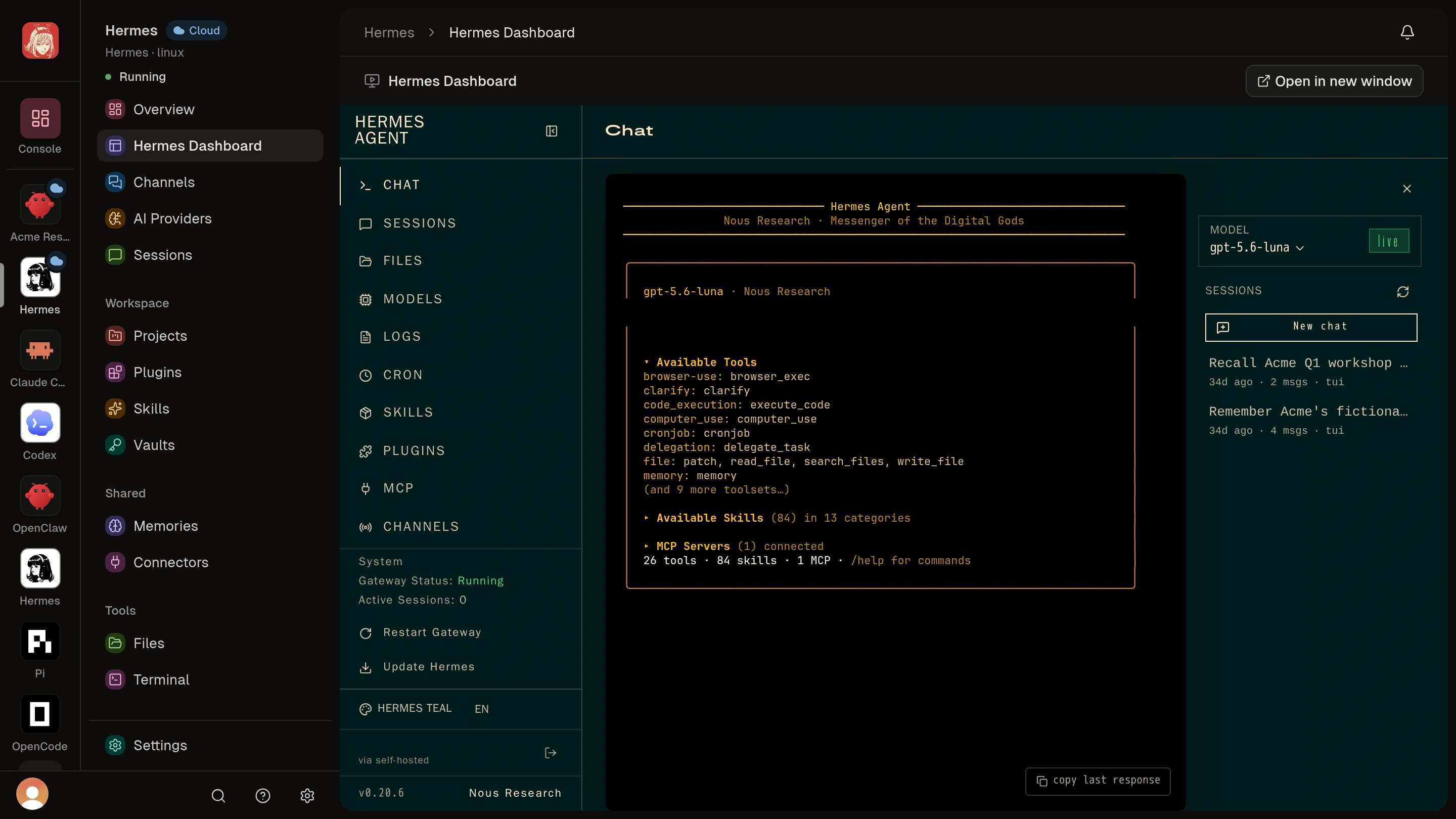
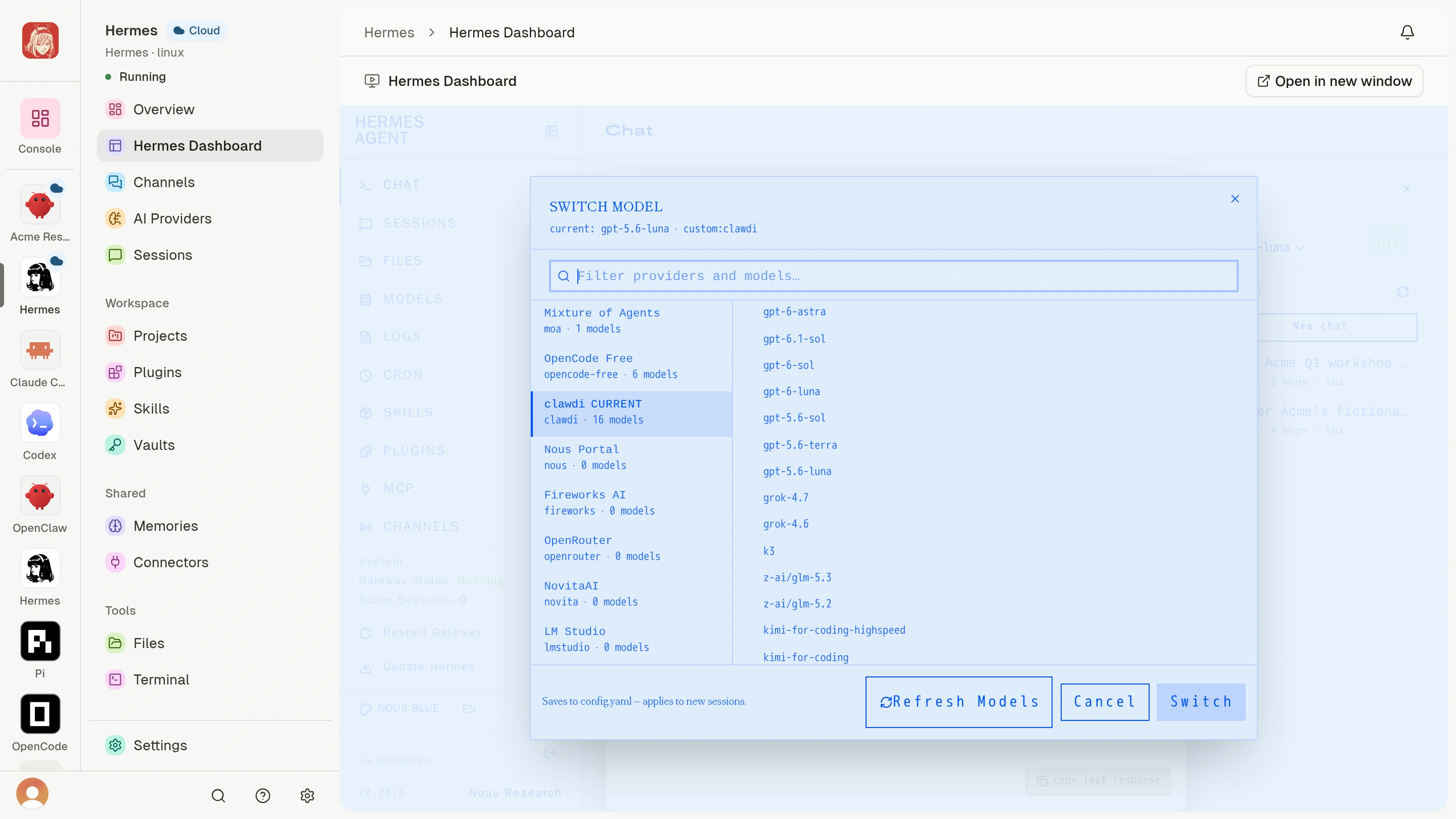
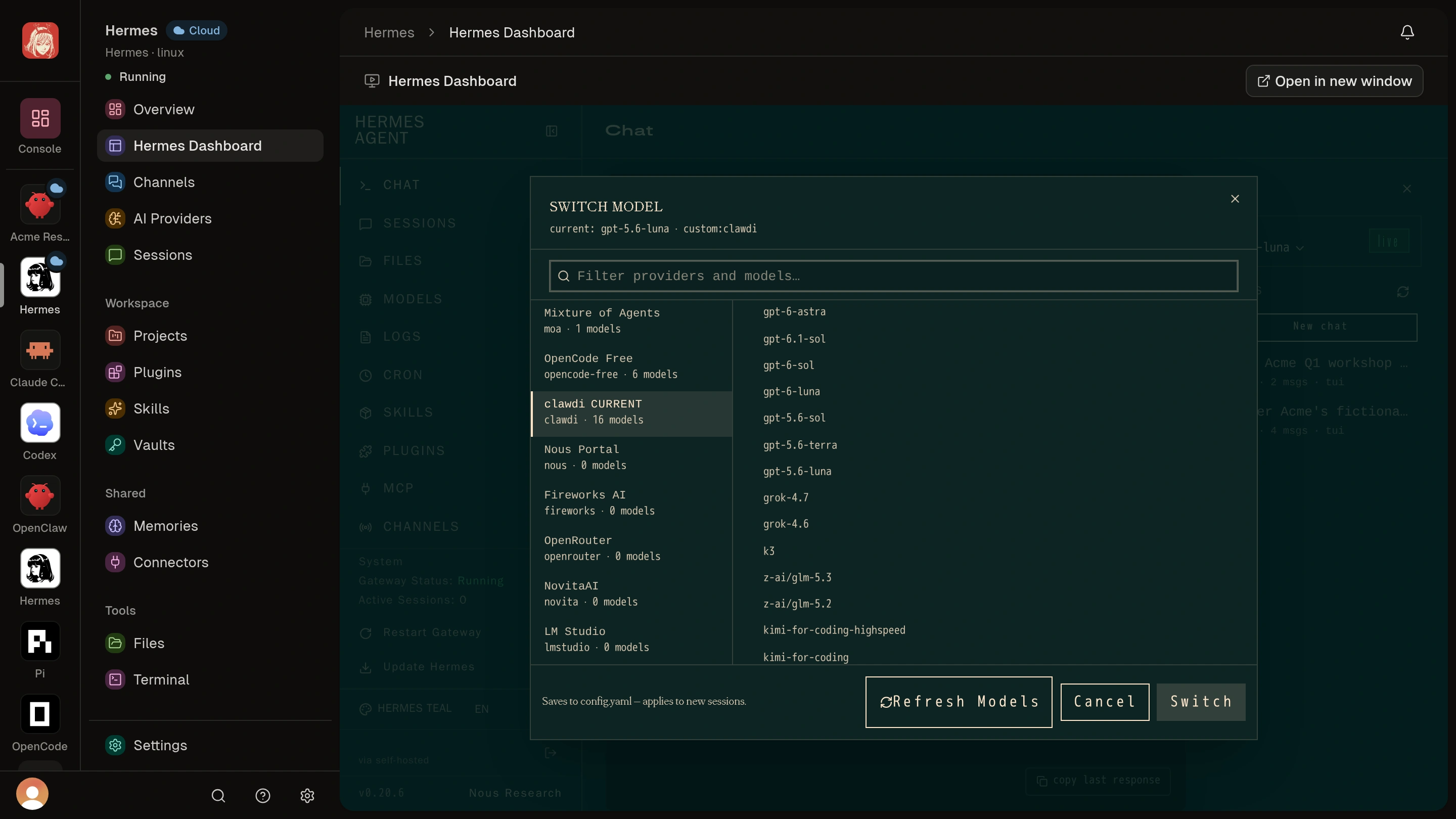
Hermes models
In Chat, open the current model selector to review the loaded model catalog and the model choices available to this runtime. Model availability can change with the Agent’s AI access configuration.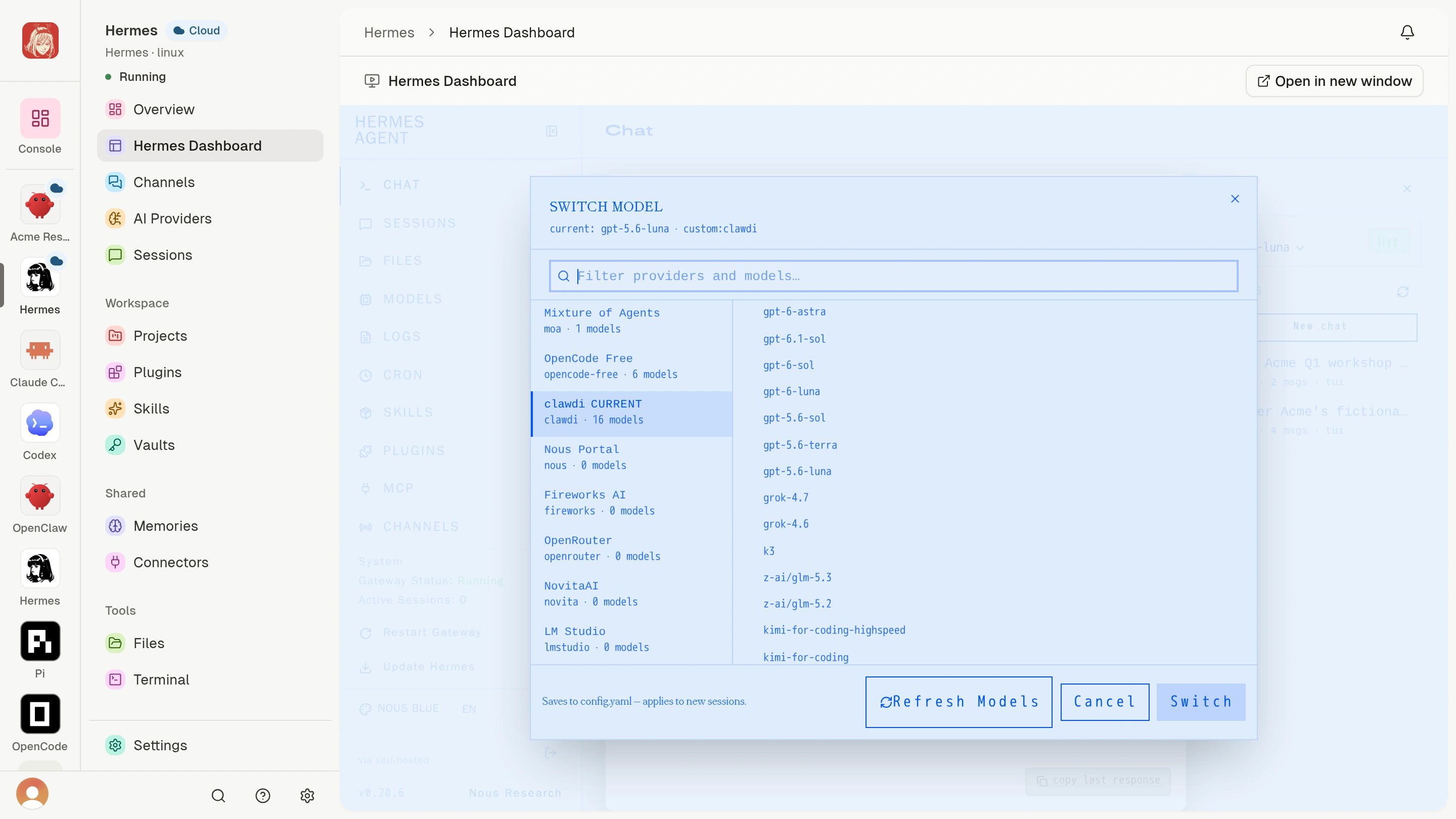
OpenClaw Control UI
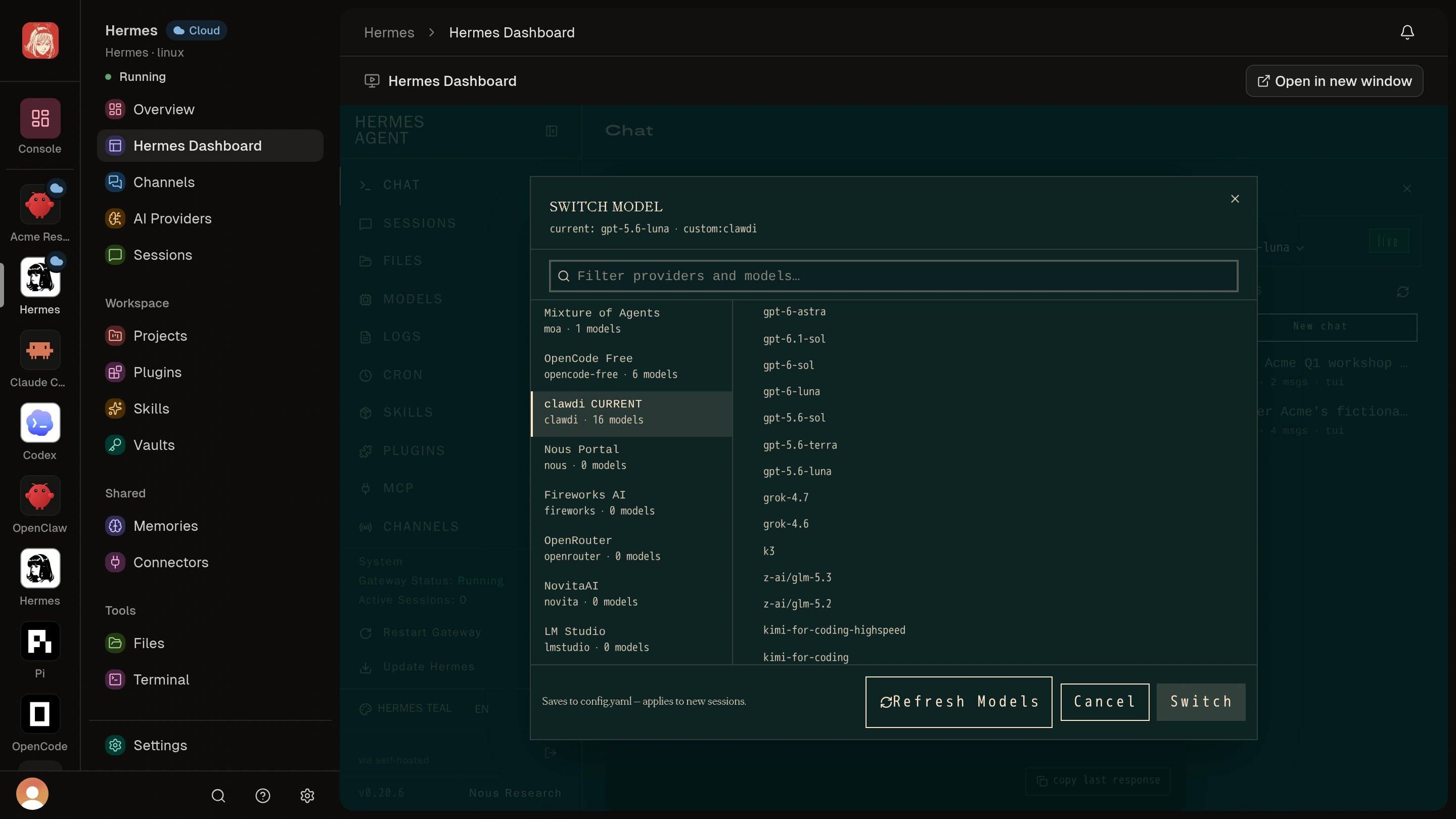
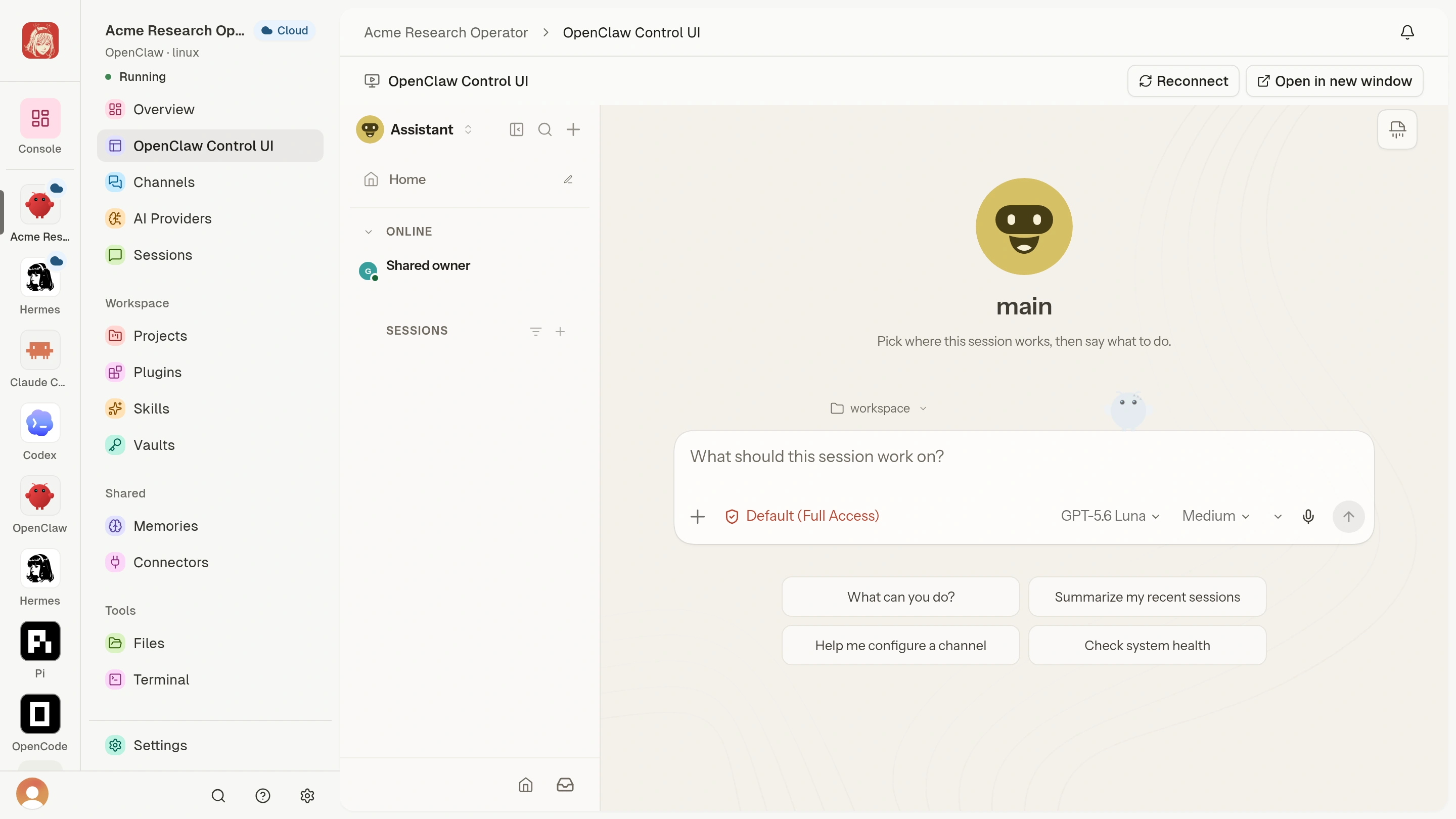
An OpenClaw Cloud Agent opens its own OpenClaw Control UI. Wait for the runtime connection and model catalog to load before beginning a conversation.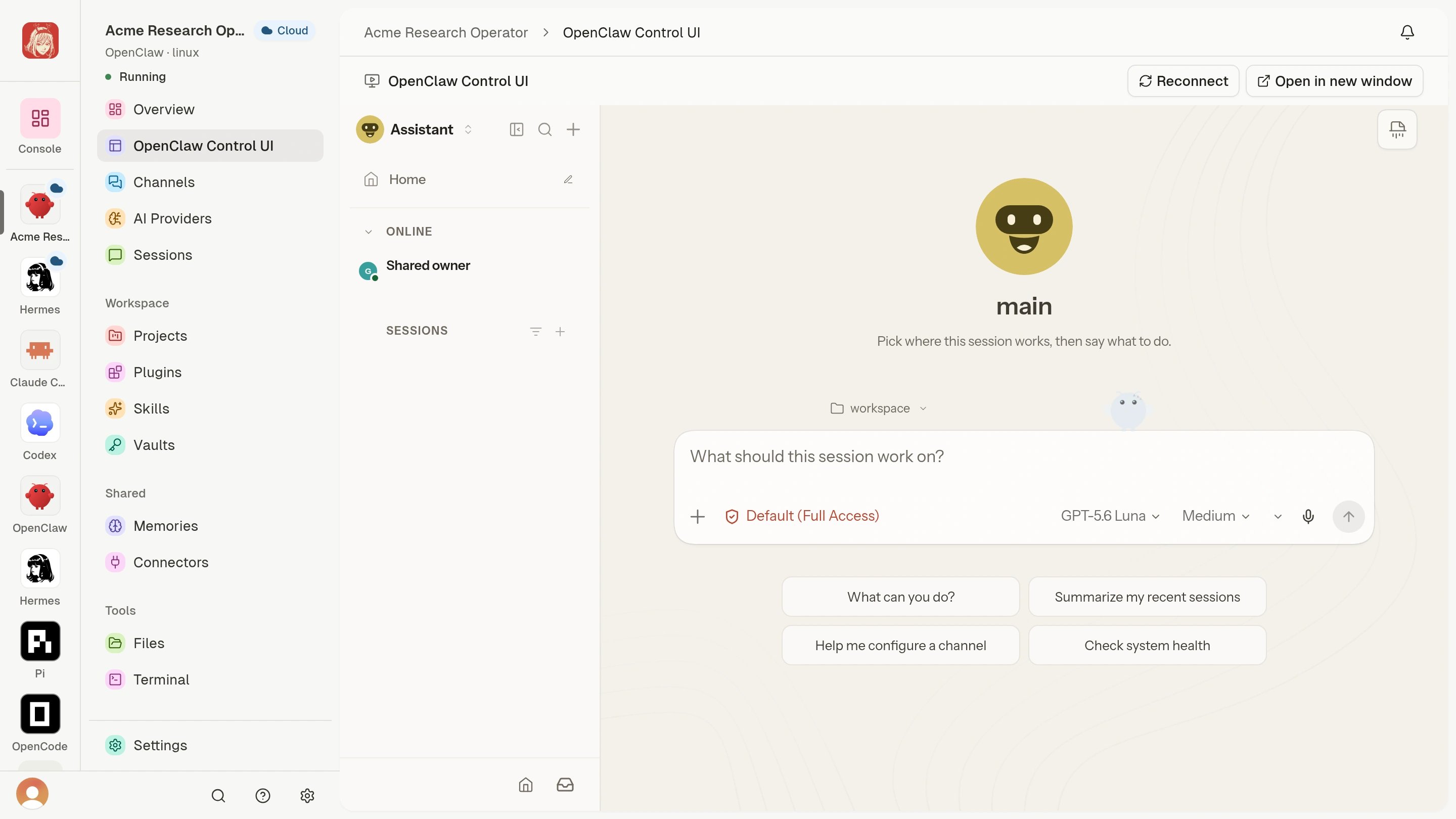
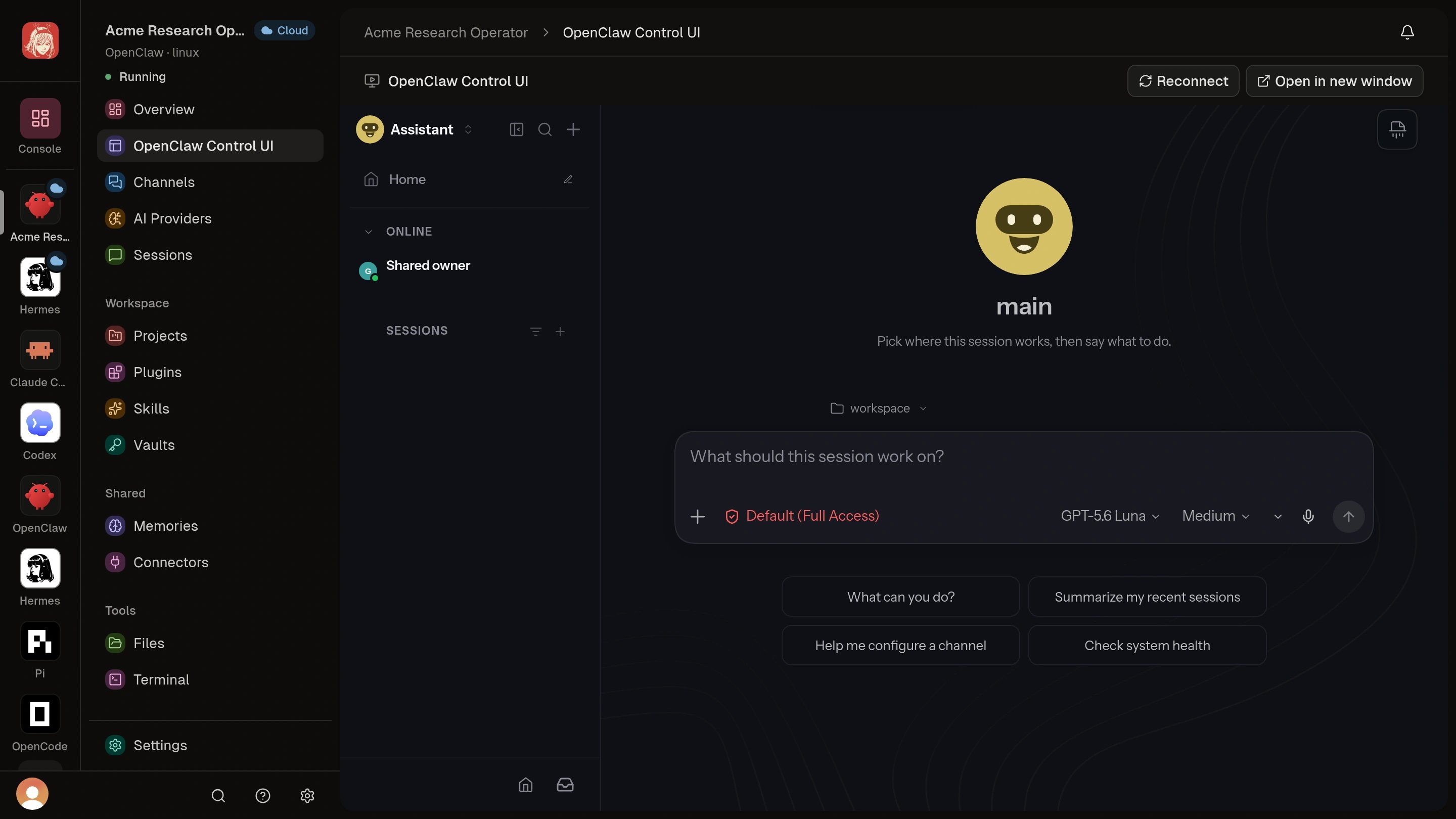
/new with the model catalog loaded. This ready-to-start view illustrates interface readiness; task verification follows after you send your own request. Light full-size image · Dark full-size image
Advanced: interface readiness and access reset
Advanced: interface readiness and access reset
- The Cloud Agent must be Running.
- The interface endpoint can become ready after the runtime starts. If the page says it is not ready, choose Check again or use Terminal while it starts.
- Access shows the current software-specific sign-in material when one is required. Treat a displayed password or token as a secret.
- Open in new window can require your browser to allow pop-ups for Clawdi.
- Reset access rotates the current access material and restarts the whole Agent through its normal lifecycle. Existing Agent Interface windows can no longer use the old material.
Files
Files opens the Cloud Agent’s private Workspace in an embedded browser. The Agent must be Running, and Clawdi authenticates the Files session before the Workspace loads. Choose Open in new window when you need the same Files view outside the Agent page.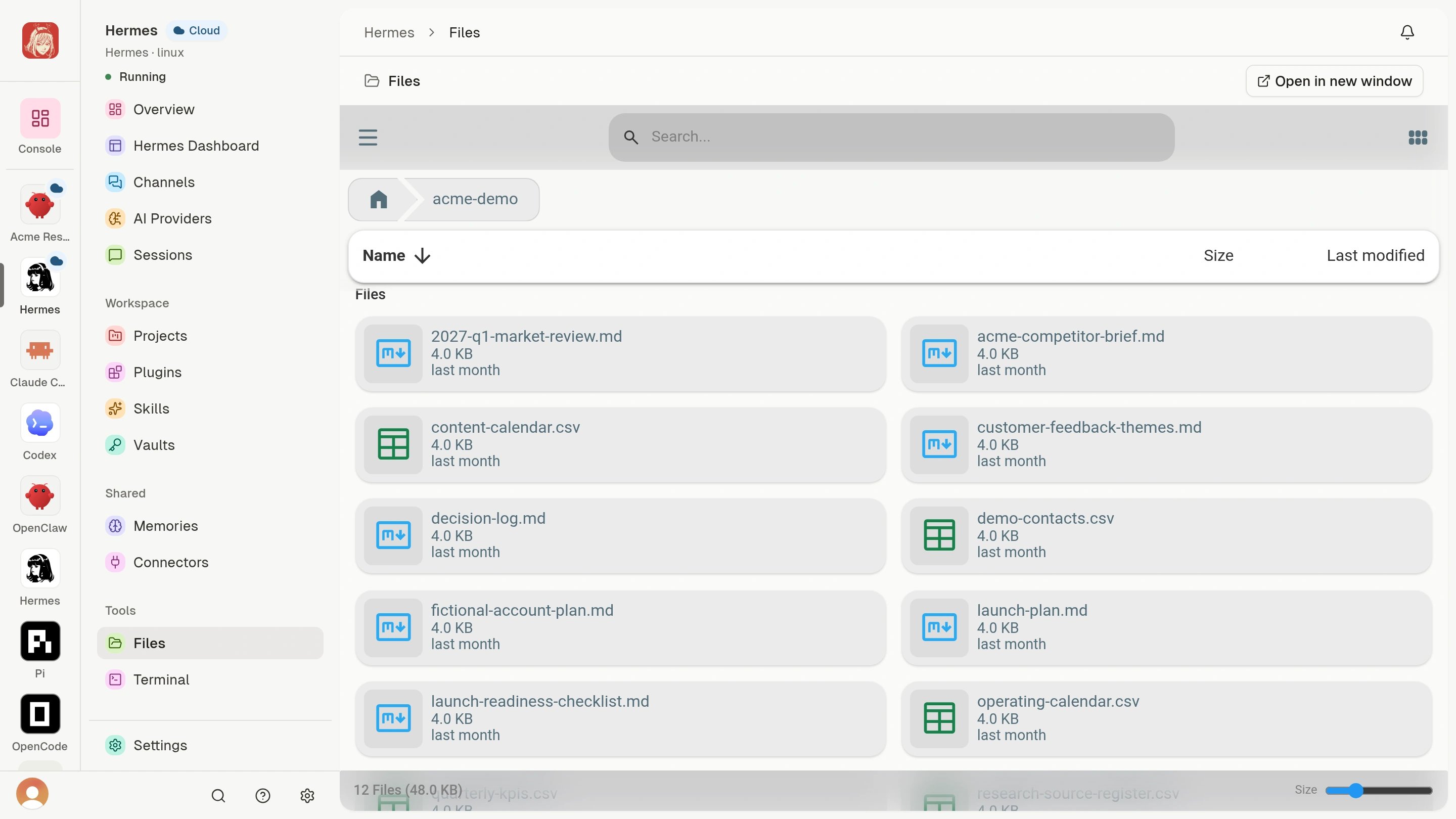
Terminal
Terminal opens a secure shell session for the Cloud Agent. It is available only while the Agent is Running. Choose Open in new window for a standalone Terminal. Supported reconnects preserve scrollback, but do not assume a disconnected foreground command is still running. The status above the Terminal reports Connecting, Connected, or Disconnected. If a connection closes, choose Reconnect to request a new session. Starting, stopping, restarting, updating, or deleting the Cloud Agent can close an active session. The shell runs as the ordinary runtime user, not with unrestricted system administrator access. Some protected system paths, operating-system package operations, and service-level changes can therefore be unavailable. The Terminal does not bypass Clawdi access controls, an Agent software permission model, or an external service’s authorization.What persists
The durable boundary is narrower than an entire operating system image.
Supported workspace files, plugins, user configuration, and user-level tools
are preserved across normal restarts and Clawdi platform updates. This does not
guarantee persistence for every filesystem path or operating-system change,
and it does not provide automatic version control or backup.
Use source control or another appropriate external system for important
project files. Use Vault for supported secret
workflows instead of pasting secrets into shell history, logs, or source files.
If a live tool is unavailable, see Cloud Agent
troubleshooting.